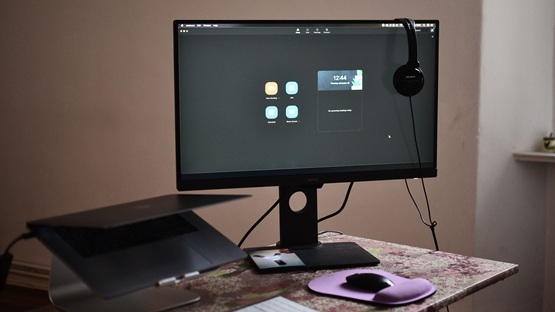
How do you choose a docking station for a laptop?
Shopping

10 August 2026
Plugging and unplugging the cable from your laptop every day can be frustrating, and over time it can wear out the USB-C port. A docking station solves this problem in a single step. Here’s what to look out for before you buy.
What is a docking station?
Docking station It’s a device that you connect to your laptop with a single cable, and it distributes the signal further – to the monitor, keyboard, mouse, internet and power supply all at once. Instead of plugging several cables into your laptop, you plug in just one, whilst the rest of the equipment remains permanently connected to the docking station.
What sort of port does your laptop have?
Before you start comparing models, it’s worth checking, What type of connector does your laptop have?. Full functionality – video, data and charging via a single cable – is provided by USB-C with support for DisplayPort Alt Mode or Thunderbolt.
On Windows, it’s also worth checking driver compatibility and graphics hardware capabilities – It depends on this factor how many screens the laptop can support and at what resolution. On macOS, the number of external monitors supported depends on the specific processor model, so not every MacBook will be able to handle the same configuration as another.
How many monitors can the station actually support?
In practice, this figure depends on a number of factors:
- operating system,
- graphic design,
- the bandwidth of the connector itself.
The mere presence of three video outputs on the workstation does not mean that your computer will display three independent, full-size desktops on them.
It’s also worth checking, Do the performance figures hold up with a larger number of screens?. A workstation that can easily handle a single 4K monitor at 60 Hz may only be able to offer a lower resolution or refresh rate when running two monitors – This is an often-overlooked detail in the specifications.
 Dowiedz się więcej
Znajdź najlepsze oferty w kilka sekund z Von Halskim - asystentem zakupowym w apce InPost Mobile. Odkryj produkty dopasowane do Twoich potrzeb i oszczędzaj na dostawie.
Von Halsky węszy okazje. A Ty? Wiesz już, czego szukasz?
Which ports are worth checking before you buy?
A typical docking station features a full set of USB-A and USB-C ports, an HDMI output, a DisplayPort, an Ethernet port, an SD card reader, an audio output and a power connector. Some models also include a Kensington lock slot, which is useful if you leave your device in a public place for an extended period.
The connector standard determines the data transfer rate: a USB-C 3.2-based dock can handle basic tasks, but it’s Thunderbolt 4 – with a bandwidth of up to 40 Gb/s – It provides enough bandwidth for several 4K monitors and high-speed drives at the same time. Bear in mind that all connected devices share the same connection to the laptop, so the more screens, drives and accessories you want to use simultaneously, the more important it is actual bandwidth, not just the number of ports.
How much charging power do you need?
Power Delivery docks typically deliver between 60 and 100 W. A lighter office laptop will only need 60–65 W, whilst more powerful models, particularly those with a dedicated graphics card, may require 90 or 100 W. If the power output is too low, this will result in slower charging or the laptop’s battery gradually draining under heavier usage.
There is one more detail that is easy to overlook: power supply unit capacity It does not all go to the laptop, as some of it powers the connected ports and devices. Before buying, compare the charging power specified for the docking station with the specifications of your computer’s original charger – and make sure you’re using a cable that actually supports Power Delivery, as the dock itself won’t do the job.
Which workstation suits your working style?
A programmer working with two or three monitors will appreciate the fast Ethernet and the extra ports for external hard drives. An office worker who only needs a single screen, a keyboard, a mouse and a power supply can happily opt for a simpler and cheaper model.
If you want to save space on your desk, it’s worth looking for vertical station – Some models also double as laptop stands. It is worth checking the specifications, however, as vertical designs do not always offer the same number of ports as the more feature-rich horizontal models.
Is a docking station worth the money?
A docking station is a sensible investment if you often return to the same workstation and are fed up with having to plug in your monitor, keyboard, mouse and power supply one by one.


Frequently Asked Questions
Will a single docking station work for both home and office use?
Yes, a single docking station can make hybrid working easier, provided that the laptop and workstations at both locations have compatible ports. A single cable allows you to connect a monitor, keyboard, mouse, network and power supply.
How does a gaming docking station differ from an office model?
Gaming models are designed with high image bandwidth, high refresh rates and a stable, low-latency Ethernet connection in mind – They may also offer power outputs in excess of 100 W. Office power stations tend to prioritise the number of USB ports and convenient connection of peripherals.
Do you have to set everything up again after disconnecting the docking station?
Usually not. The operating system automatically detects monitors and other devices when they are reconnected, using the saved configuration. You only need to set up the screen layout and extended desktop mode once, when you first start the system.
Will the docking station work with a laptop that doesn’t have a USB-C port?
An older laptop with a USB-A port may work with a simpler docking station compatible with this connector, but usually without charging and with limited display support. Full functionality – transmission of data, video and power via a single cable – This is only supported by USB-C with DisplayPort Alt Mode or Thunderbolt.
Where to buy a docking station for a laptop?
SYou can find a charger suited to your laptop’s specifications with Von Halski. The shopping assistant in the InPost Mobile app will search through the available offers and suggest specific options tailored to your needs. You can say or type what you’re looking for – for example, "a docking station supporting two monitors" – the By Halsky will display the products in a clear carousel.