How do you choose a high-capacity USB stick?
Shopping
27 September 2026
A good, high-capacity USB stick should be able to hold files, write them at a reasonable speed and be compatible with the devices between which you’re transferring data. Nowadays, a model with 256 GB or more is considered to have a large capacity, but before buying, you should also check the actual write speed, the USB standard, the type of connector and the warranty. For 1 TB, it’s worth comparing the price and performance with an external SSD.
How much space do you actually need on a USB stick?
The best point of reference is the size of the files to be included on the storage medium. The phrase ‘for photos’ doesn’t really tell you much about the storage capacity you’ll need: a few hundred photos from your mobile will take up a different amount of space to a collection of RAW files and video clips from several photo shoots.
You can check the size of the selected folders in their properties. You’ll need to add some extra space to this figure to accommodate future files. If the current collection takes up 180 GB, a 256 GB USB stick will hold it, but if you regularly add large files, a 512 GB capacity will give you more flexibility.
Did you know that…
Not all of the storage capacity stated on the packaging is available for files. Part of it is taken up by structures required for the storage medium to function, and operating systems convert units in different ways. Choosing a storage capacity that’s ‘just enough’ makes it difficult to add more data later on.
Fast read or write – which makes copying quicker?
The read speed indicates how quickly data is transferred from the USB stick to the computer. Write speed refers to the opposite direction. When you’re copying a large project onto a storage device before you leave, the second parameter is the most important. The claim ‘up to 400 MB/s’ displayed on the packaging does not answer this question if the manufacturer only specifies the read speed.
A simplified calculation of the time taken to save 100 GB of data illustrates the difference well:
Sustained write speed |
Estimated time to copy 100 GB |
|---|---|
| 20 MB/s | about 83 minutes |
| 50 MB/s | about 33 minutes |
| 100 MB/s | about 17 minutes |
*This calculation is based on a constant speed and does not represent the results of a test carried out on a specific device.
For large datasets, long-run tests are the most useful. A brief test does not show whether the USB stick will maintain its speed once the fast buffer has been used up or the device has warmed up.
USB-A or USB-C – which USB stick is compatible with your devices?
USB-A it is a larger, rectangular plug, and Universal Serial Bus-C It is smaller and can be plugged in either way round. A USB stick with two connectors makes it easier to transfer files between devices with different ports, without having to carry a separate adapter. USB 3.2 Gen 1 refers to a 5 Gb/s connection, Gen 2 to 10 Gb/s, and Gen 2x2 to 20 Gb/s. A USB stick with slow write speeds will not utilise the full bandwidth of a high-speed port, whilst a slower port will limit the capabilities of a high-speed storage device. For mobile phones and tablets, you also need to check that they support external storage devices and their file systems.
 Dowiedz się więcej
Znajdź najlepsze oferty w kilka sekund z Von Halskim - asystentem zakupowym w apce InPost Mobile. Odkryj produkty dopasowane do Twoich potrzeb i oszczędzaj na dostawie.
Von Halsky węszy okazje. A Ty? Wiesz już, czego szukasz?
exFAT, NTFS or FAT32 – which file system is best for large files?
The file system determines how data is organised on a USB stick. Among other things, it determines whether you can save a large video file and play it back on another device.
- exFAT It supports large files and allows them to be read and written on both Windows and macOS. It is ideal for exchanging data between these operating systems.
- New Technology File System It is particularly useful in a Windows environment. macOS can read this type of storage medium by default, but writing to it requires an additional solution.
- File Allocation Table 32 It is still required on some older devices. However, it limits the size of a single file to just under 4 GiB, or approximately 4.3 GB. The free space on a USB stick is not affected by this limit.
For a television, car radio or other player, refer to the device’s instruction manual.
How do you set up a USB stick to work in the format of your choice?
Formatting deletes files from the selected storage device. You will need to back them up to another location before you begin. In Windows, the ‘Format’ option is available in the menu that appears when you right-click on a storage device in the ‘This PC’ view. In the window, you can select exFAT or NTFS and leave the default allocation unit size.
In macOS, Disk Utility is used for this purpose. The ‘Show All Devices’ view allows you to select the entire USB stick, and the ‘Erase’ button opens the format and partition scheme settings. The partition scheme should meet the requirements of the devices on which the storage will be used.
When is it better to consider an external SSD rather than a USB stick?
A USB stick is handy for transferring files and carrying in your pocket: it takes up very little space and plugs straight into the port. If you frequently copy large files or work directly from the storage device, it’s also worth considering an external SSD. There is no specific storage capacity at which an SSD automatically becomes the better choice. A high-performance USB stick and a compact SSD can serve a similar purpose, and an SSD also slows down once its buffer is full or if it overheats.

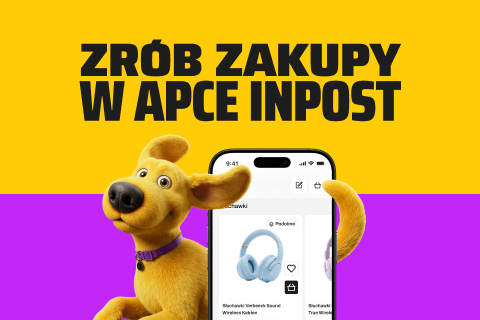
How can I find a USB stick that suits my needs with Von Halski?
The following helps you find the right products By Halsky, a helpful shopping assistant in the InPost Mobile app.
You could start the conversation by mentioning everyday uses, such as transferring files between your phone and computer. It would also be helpful to mention the size of your file collection, the models of the devices you use and your budget. Von Halsky searches for offers available on the app and helps you compare their prices and specifications.
How can you check whether a USB stick has its advertised capacity?
A faulty storage device may report a capacity of several hundred gigabytes to the system, even though it physically holds far less data. Initially, data appears to be written correctly, but once the actual capacity is exceeded, files become corrupted or are overwritten.
Neither the capacity shown in the device’s properties nor a quick format is sufficient for verification. A full test requires an empty storage device with a single partition covering the entire declared space, and a check of all free space. Any existing files should be moved to another drive beforehand. A test of large amounts of free space can take several hours. Errors require investigation – apart from false capacity readings, they may be caused by a fault with the storage device or the connection.
Even a correct result does not guarantee trouble-free operation for years to come. Important files require a separate copy, and you should wait until the copying process has finished and the system has safely ejected the storage device before disconnecting it from the port.
FAQ: Frequently Asked Questions about high-capacity USB sticks
Why does a 512 GB USB stick show as approximately 477 GB in Windows?
The manufacturer counts 1 GB as one billion bytes. Windows calculates capacity using binary units, although it uses the GB notation in this view. Therefore, 512 GB is equivalent to approximately 477 GiB. The file system also takes up a small amount of space. This difference alone does not constitute fraud.
Why won’t the TV play a film from a high-capacity USB stick?
If the TV cannot recognise the storage device, this may be due to, amongst other things, an unsupported file system, partition layout or capacity. If a file is visible but cannot be played, it is worth checking its format and codecs against the list supported by the TV. A faster USB stick will not provide the TV with any missing decoding capabilities.
Do you need to know the specifications of a USB stick to use Von Halski?
No. Simply describe which files you want to transfer, between which devices, and how much you’re willing to spend. Von Halsky will help you find suitable options in the InPost Mobile app. If you don’t know the type of port, it will be helpful to provide the exact model of your computer or phone during the conversation.